If you accidentally deleted an app on your Android phone, you can usually reinstall it without purchasing it again. The easiest way is to check your Google Play Store app history and reinstall apps you previously downloaded.
You can also restore apps using your Google backup, device backup, or the app’s official source. In this guide, we’ll explain 5 easy ways to restore deleted apps on Android, including how to find uninstalled apps, reinstall them, and recover them after resetting your phone.
First, Confirm the App Is Actually Deleted
Before you spend time on recovery steps, rule out the two most common false alarms. Android phones frequently make it look like an app vanished when it is still on the device.
Check 1: Is it hidden from the app drawer?
Some launchers, and Android’s own “Hide apps” feature, let you remove an icon from the app drawer and home screen without uninstalling anything. On stock Android and most custom skins:
- Open Settings and search for “Hide apps” or “App drawer settings.”
- On Samsung: Home screen settings > Hide apps.
- On Xiaomi/MIUI/HyperOS: App vault or App drawer settings > Hidden apps.
- On OnePlus/Oppo/Realme: Home screen settings > App drawer > Hide apps.
If the app shows up in one of these lists, unhide it. No reinstall required, and no data is lost.
Check 2: Was it disabled instead of uninstalled?
Pre-installed system apps and some carrier or work apps can only be disabled, not removed. A disabled app disappears from the app drawer but is still on the phone. Go to Settings > Apps > See all apps, then check the filter for “Disabled” apps. If you find it there, tap Enable.
If neither check turns anything up, the app was genuinely uninstalled, and one of the methods below will get it back.
Method 1: Reinstall From the “Not Installed” List
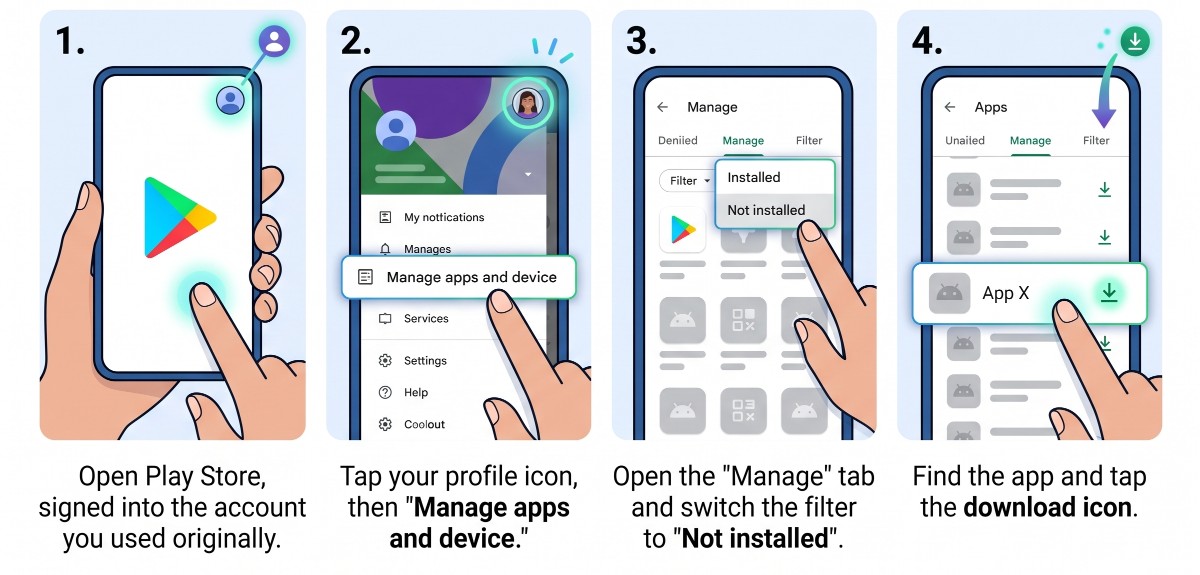
This covers most cases, including accidental deletes and apps removed to free up space.
- Open Play Store, signed into the account you used originally.
- Tap your profile icon, then “Manage apps and device.”
- Open the “Manage” tab and switch the filter to “Not installed.”
- Find the app and tap the download icon.
You can also do this from the Play Store website on a computer; the app installs remotely once your phone reconnects.
Method 2: Restoring Your Whole App List on a New or Reset Phone
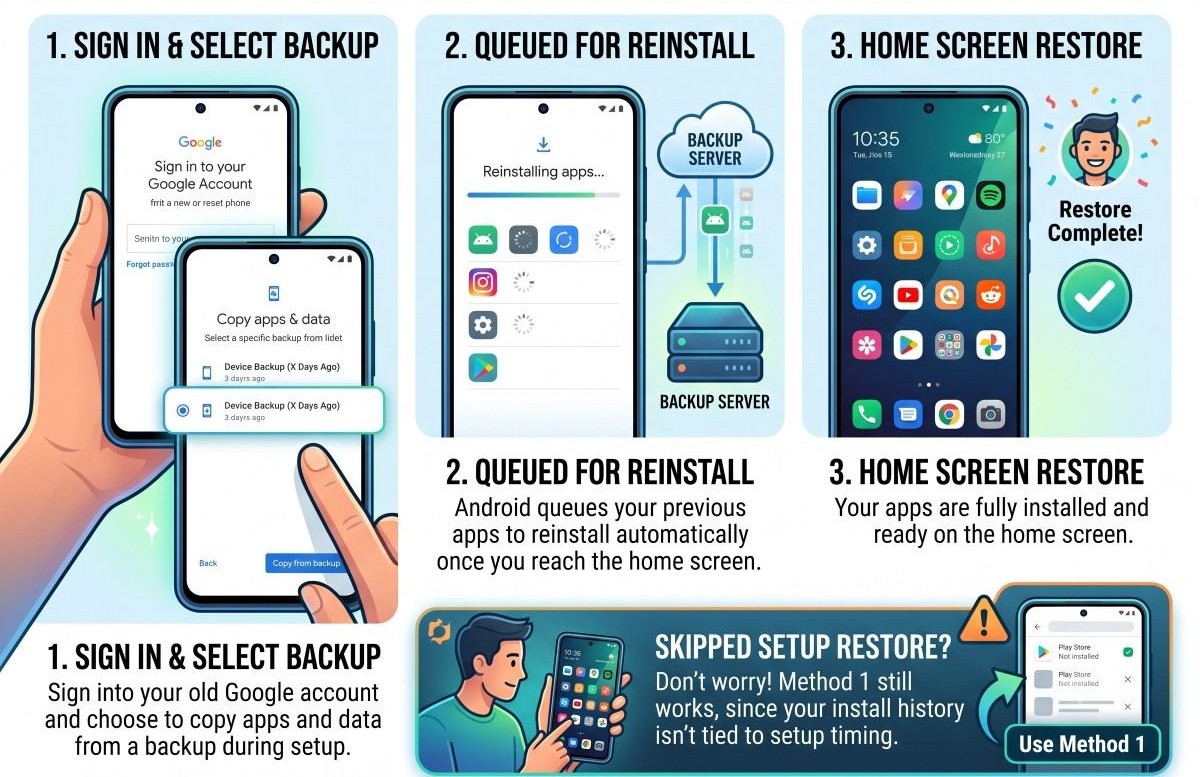
During Android setup, sign into your old Google account and choose to copy apps and data from a backup. Android queues your previous apps to reinstall automatically once you reach the home screen. Skipped that step already? Method 1 still works, since your install history isn’t tied to setup timing.
Method 3: Recovering the App’s Data, Not Just the App
Reinstalling gives you a fresh copy in its default state. Whether old data returns depends on how the app stores it:
| Data type | Comes back automatically? |
| Cloud account data (game login, synced notes) | Yes, once you sign back in inside the app |
| Android’s Auto Backup for Apps (small settings, under ~25MB) | Usually, if the developer hasn’t opted out |
| Local-only data (offline saves, unsynced files) | No, unless you made a manual backup |
- Many finance and security apps deliberately opt out of Auto Backup for privacy reasons.
- Backup data is tied to the app’s exact package name; installing from a different source (modded APK, different region listing) won’t attach to it.
- WhatsApp and most chat apps manage backup separately, inside their own Settings > Chats menu, not through Android’s system backup.
- A backup can be deleted if its source device sits unused for 57 days.
Method 4: Manufacturer App Stores
Samsung, Xiaomi, and Huawei phones run a second app store with its own history:
| Brand | Where to check |
| Samsung | Galaxy Store > Menu > My Page > Downloads |
| Xiaomi/Redmi/POCO | GetApps > Me > Installed |
| Huawei/Honor | AppGallery > Me > Install manager |
Note: MIUI’s “Recycle Bin” recovers deleted files and photos, not uninstalled apps. It’s a common mix-up.
Method 5: The App Was Removed From Google Play Entirely
If the listing shows “This item is no longer available,” reinstalling through Play Store won’t work. Try, in order of safety: the developer’s own website for a direct download, a different regional storefront, or (for a paid app you already own) contacting Google Play support with your purchase details. Avoid random third-party APK sites; files there can be tampered with and skip Play Protect scanning entirely.
Shared and Managed Apps
Family Library apps missing from your device: check Method 1 first, since shared apps appear in the same list. Still missing means the sharer disabled sharing or left the family group, and it needs to be re-shared from their account.
Work Profile apps: check the Play Store icon inside your Work Profile specifically. If it’s still missing, your IT admin likely unassigned it, and it needs to be re-pushed through device management, not reinstalled by you.
Quick Troubleshooting
| Problem | Fix |
| “Not installed” list is missing apps you know you had | Wrong Google account signed in; check Settings > Accounts |
| Install button greyed out | Check free storage and the app’s minimum Android version requirement |
| “Not available in your country” | Developer restricted the region, or your Play Store country changed |
| Reinstalled but no old data | Developer opted out of Auto Backup, or you’re on a different in-app account |
Preventing This Next Time
- Turn on Settings > Google > Backup so app data has somewhere to restore from.
- For games or progress you care about, link an in-app cloud save rather than relying on system backup alone.
- Before uninstalling to fix a bug, try Settings > Apps > [app] > Storage > Clear cache first.
Also Read: Top 5 Scanning Apps for Android
Frequently Asked Questions
Does Google keep my app history forever?
Yes, it’s tied to your account, not the device, so even years-old installs still show under Not Installed as long as the app remains on Play.
Is there a recycle bin for deleted apps, like there is for photos?
No. The Not Installed list is a history you reinstall from, not a bin holding the exact thing you deleted.
Why does the app ask me to log in again after reinstalling?
App-level login is separate from Android’s system backup. Unless the app supports Google’s saved-password autofill, you’ll need to sign in manually.
Can I restore an app on someone else’s phone remotely?
Only by signing into that Google account on the device itself. There’s no way to trigger a reinstall without account access.